
- What is Televizo?
- Requirements Before Starting
- Step 1: Download and Install Televizo
- Step 2: Initial Setup
- Step 3: Select Playlist Type
- Step 4: Enter Server URL, Username and Password
- Step 5: Navigate the Interface
- Step 6: Set Up EPG (Program Guide)
- Troubleshooting Common Issues
- Frequently Asked Questions
What is Televizo?
Televizo is a versatile, user-friendly IPTV player application for Android, Android TV, and Amazon Firestick. It streams live TV channels, movies, and series from your IPTV service provider. Televizo supports multiple playlist formats including Xtream Codes and M3U, making it compatible with virtually any IPTV subscription.
Televizo is a player only. It does not provide any content. You need a valid IPTV subscription to use it. Jhakas Stream Now provides 13,000+ channels that work perfectly with Televizo.
Get IPTV SubscriptionPlans from $10/month. Free 24-hour trial available. No credit card required.
Requirements Before Starting
Before you begin, make sure you have the following ready from your IPTV provider:
- Server Address (URL): The portal URL in the format
http(s)://yourserver.com:port - Username: Your unique IPTV account username
- Password: Your IPTV account password
- Compatible Device: Android phone or tablet, Android TV box, or Amazon Firestick
These credentials are provided by Jhakas Stream Now after your subscription is activated. If you have not subscribed yet, contact us on WhatsApp and we will set you up with a free trial.
1 Download and Install Televizo
For Android and Android TV
The easiest way is through the Google Play Store:
- Open Google Play Store on your device
- Search for "Televizo IPTV player"
- Select the official Televizo app from results
- Tap Install and wait for it to complete
For Amazon Firestick and Fire TV
- Search for Televizo in the Amazon Appstore
- If available in your region, install directly
- If not available, sideload it using the method below
Sideloading on Firestick (If Not in Store)
- Install the Downloader app from Amazon Appstore
- Go to Settings > My Fire TV > Developer Options
- Enable Apps from Unknown Sources and ADB Debugging
- Open Downloader and enter the official Televizo APK URL
- Download and install the APK file
- Allow installation from unknown sources when prompted
Important: Only download Televizo from the official Google Play Store or the official Televizo website to ensure you get genuine, secure software.
2 Initial Setup
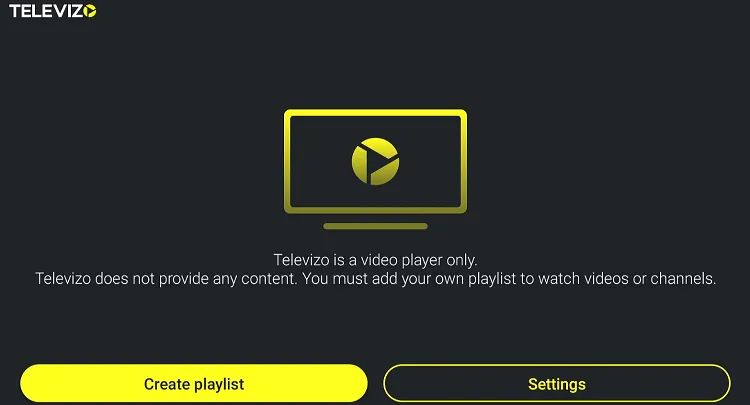
Once Televizo is installed, open the app and you will see the main screen with options to add playlists.
- Launch Televizo from your app drawer or home screen
- Tap Create playlist / profile or the plus icon
- You will see different playlist type options
3 Selecting Playlist Type
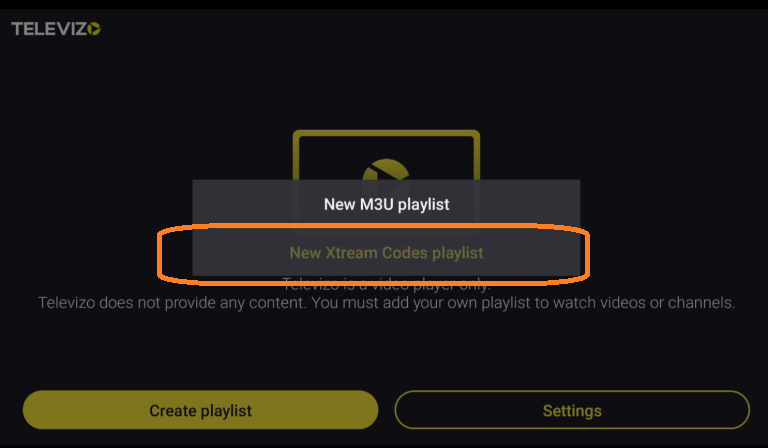
Using Xtream Codes (Recommended)
Most IPTV providers including Jhakas Stream Now use Xtream Codes format. This is the recommended method:
- Select New Xtream Code Playlist from the options
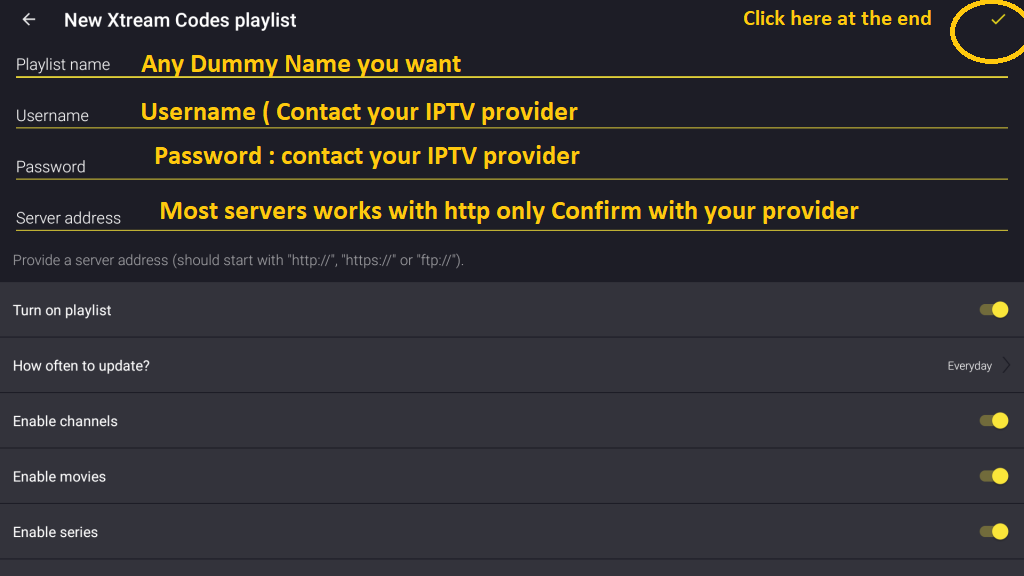
- You will see fields for Server URL, username, and password
Using M3U Playlist (Alternative)
If your provider gives you an M3U URL instead:
- Select New M3U Playlist
- Choose Enter M3U URL and paste the link, or Choose File to browse a downloaded file
- Name your playlist and save
4 Enter Server URL, Username and Password
This is the most important step. Enter the credentials provided by Jhakas Stream Now:
- Server URL: Enter the full server address (e.g.,
http://yourserver.com:8080) - Username: Enter your IPTV account username exactly as provided
- Password: Enter your IPTV password
Give your profile a name such as Jhakas Stream, then tap the checkmark or Save button. Wait for the channels to sync (this may take a few minutes on first load).
Tip: Copy and paste your credentials from the message we sent you on WhatsApp rather than typing them manually. This avoids typos in the server URL or password.
5 Navigating the Televizo Interface
Once logged in successfully you will see the main Televizo interface with these sections:
- Live TV: Browse live channels organised by categories
- Movies: Access your movie library if included in your service
- Series: Browse TV shows and web series
- Catch Up: Watch previously aired programmes if your subscription supports it
- Favourites: Your saved favourite channels and content
Channels are organised into categories such as Sports, Entertainment, News, International, Kids, Movies, and Documentaries. Use the search function to find a specific channel quickly.
6 Set Up EPG (Electronic Program Guide)
EPG shows you what is playing now and what is coming up on each channel, like a TV guide. To set it up:
- Long-press on your profile name in the main screen
- Select Edit or Settings
- Find the EPG URL or XMLTV field
- Enter the EPG URL provided by Jhakas Stream Now
- Set the EPG update frequency to every 12 hours
- Tap Update EPG to download program data
EPG Tip: Make sure your device's time zone is set correctly. An incorrect time zone causes the EPG to show programme times that do not match the live broadcast.
Troubleshooting Common Issues
Login Problems
- Double-check your server URL, username, and password for any typos
- Ensure your internet connection is stable
- Confirm your Jhakas Stream Now subscription is active
- Try clearing the Televizo app cache and restarting
Televizo EPG Not Available
- Go to your profile settings in Televizo
- Add the correct XMLTV EPG URL from your provider
- Check your device date, time, and time zone settings
- Tap Update EPG manually
- Wait for the EPG to fully download before checking again
Buffering or Playback Issues
- Check your internet speed (minimum 10 Mbps for HD, 25 Mbps for 4K)
- Close other apps that may be consuming bandwidth
- Restart your router or modem
- Try switching to a different channel to isolate the issue
Network Tip: Use a wired Ethernet connection or position yourself close to your Wi-Fi router for the most stable streaming experience on Firestick and Android TV boxes.
Still stuck? Jhakas Stream Now provides 24/7 WhatsApp support. Message us and our team will walk you through the setup step by step on your specific device.
Frequently Asked Questions
Was this guide helpful?
Your feedback helps us improve our support articles.